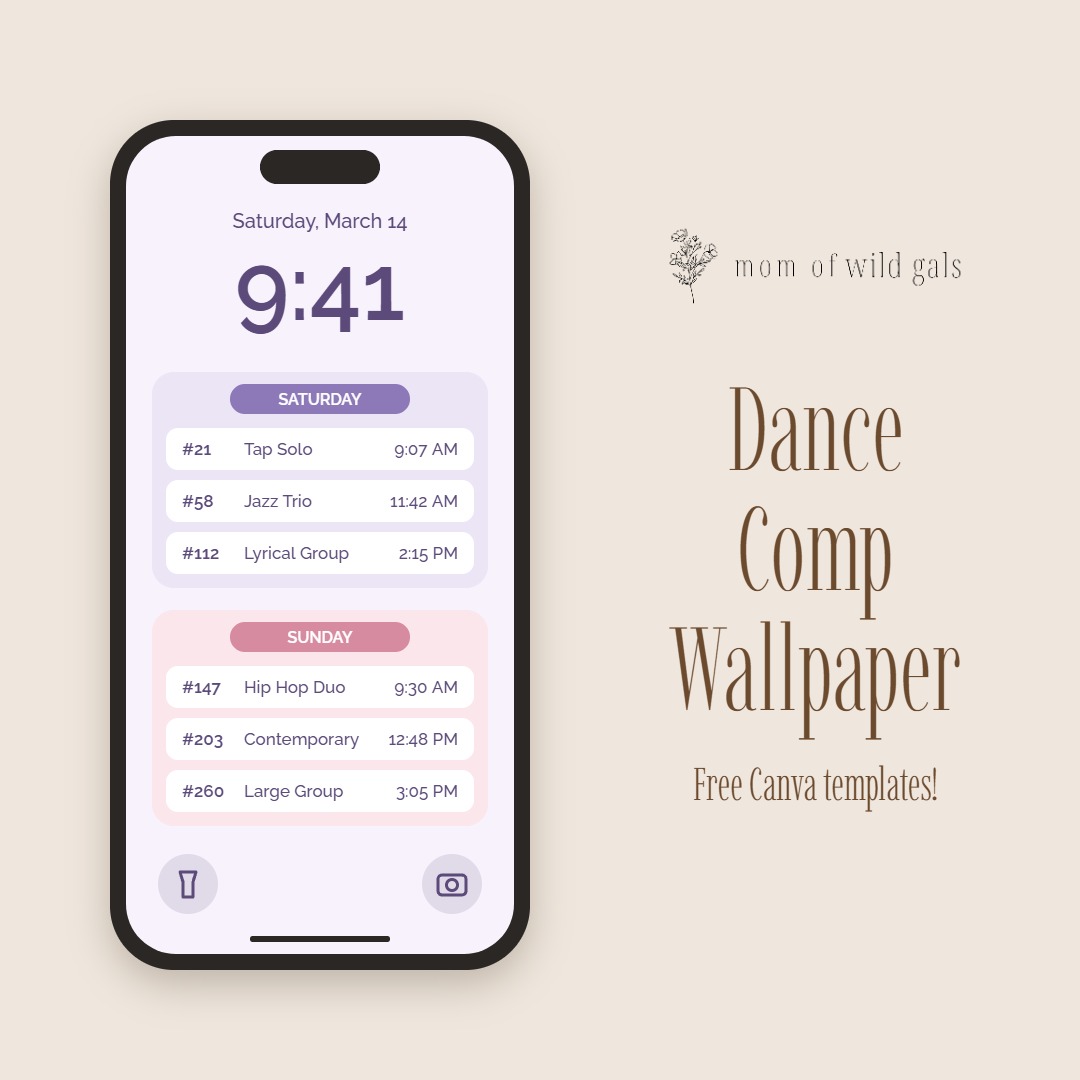
A simple dance mom hack: put your competition schedule right on your lock screen.
If you’ve ever been at a dance competition, you know the drill. You’re juggling costume bags, hair supplies, snacks, and a very excited dancer, all while trying to remember which number is up next and what time she needs to be backstage.
For a long time, I kept our schedule in a screenshot buried somewhere in my camera roll, or on a crumpled piece of paper at the bottom of my bag. Then another dance mom shared the most brilliant idea with me: make the schedule your phone’s wallpaper!
Now every time I glance at my phone, our dance numbers, names, and times are right there. No unlocking, no scrolling, no digging. I loved it so much that I made a couple of Canva templates so I could pass the idea along to you. Here’s how to make your own for free.
Why a Competition Wallpaper Works
- Everything at a glance: see your schedule just by tapping your lock screen.
- No searching: no more hunting for a screenshot or the competition app when the schedule is running ahead.
- Easy to share: send the image to grandparents, your partner, or a fellow dance mom so everyone knows when to be in their seats.
- Free and quick: it only takes a few minutes to make one for each competition.
The Free Canva Templates
I made two templates, and they’re both in the same Canva file. Page 1 is Template 1 and page 2 is Template 2, so you can pick the one that works best for you (or use both!):
Template 1 (Page 1): With the Competition Name
This template has a spot at the top to type in the name of the competition and its dates, with a section for each day of the competition listing your dance numbers, dance names, and times. It’s perfect if you want a little keepsake of each competition, or if you’re heading to more than one event in a season.
Template 2 (Page 2): Just the Dances & Times
This one keeps it simple with just your dance numbers, dance names, and times. It leaves open space at the top so your iPhone’s clock doesn’t cover anything on your schedule. If you want the cleanest, easiest-to-read lock screen, this is the one for you.
How to Edit Your Template in Canva
You’ll need a free Canva account. You can do this on your computer at canva.com or in the Canva app on your phone.
- Click the template link above, then click View template.
- Click Use template for new design. This makes your own copy, so you can edit it without changing the original.
- Scroll to the page you want to use: page 1 for the competition name version, or page 2 for the dances-and-times version. You can delete the page you don’t need, or keep both.
- Click on any text box to type in your information:
- The competition name, dates, and days (Template 1 only)
- Each dance number
- Each dance name
- Each performance time
- Need more lines? Click a line of text, then click the duplicate button (it looks like two overlapping squares). Have fewer dances? Click the extra lines and delete them.
- Make it yours! You can change the colors, fonts, or background to match your studio colors. Just keep the text big and easy to read.
Tip: Double-check every time against the official competition schedule before you download.
How to Download Your Wallpaper
On a computer
- Click Share in the top right corner, then choose Download.
- Choose PNG as the file type for the sharpest image.
- Under Select pages, choose just the page you want as your wallpaper.
- Click Download.
- Send the image to your iPhone. AirDrop is the quickest on a Mac, or you can email or text it to yourself. Then save it to your Photos.
In the Canva app on your iPhone
- Tap the Share button at the top of the screen.
- Tap Download (or Save to Photos).
- Choose PNG if it asks, and pick just the page you want under Select pages. Then tap download. If Canva asks for permission to access your photos, tap Allow.
- Your wallpaper will be saved to your Photos app.
How to Set It as Your iPhone Wallpaper
The exact wording can vary a little depending on your iOS version, but these steps work on recent iPhones.
Option 1: From the Photos app
- Open the Photos app and tap your wallpaper image.
- Tap the Share button (the square with an arrow pointing up).
- Scroll down and tap Use as Wallpaper.
- Pinch and drag to position it so all of your dances are showing.
- Tap Add (or Done), then choose Set as Wallpaper Pair to use it on both your lock screen and home screen, or Customize Home Screen to keep a different home screen.
Option 2: From Settings
- Open Settings and tap Wallpaper.
- Tap Add New Wallpaper, then tap Photos.
- Choose your wallpaper image, position it, and tap Add.
Tip: If your iPhone tucks part of the image behind the clock, turn off the Depth Effect while you’re positioning the wallpaper (tap the three dots in the corner). That’s exactly why Template 2 leaves space at the top!
Bonus tip: You can switch back to your favorite family photo after the competition. Just press and hold your lock screen and swipe to your old wallpaper.
A Few Extra Dance Mom Tips
- Add the extras: squeeze in your call time, dressing room number, or which costume goes with each dance.
- Update as you go: competitions often run ahead or behind. A quick edit in the Canva app and a new download keeps your lock screen accurate.
- Make one per competition: each design saves in your Canva account, so next time you only need to change the details.
- Charge up: bring a portable charger. Competition days are long, and you’ll want your phone for photos and videos too!
See You at the Next Competition!
This little trick has made our competition days so much smoother, and I’m so thankful to the sweet dance mom who shared it with me. It’s one of my favorite things about the dance world: moms looking out for each other. One less thing to remember means more time to fix hair, find the missing shoe, and cheer like crazy from the audience.
Now I’m passing it on to you. Grab a template, make it your own, share it with the dance moms in your life, and good luck to your dancer!
From one dance mom to another, break a leg!
Mom of Wild Gals
Canva is a free online design tool. These templates are free for personal use. Canva’s features and menus may change over time.